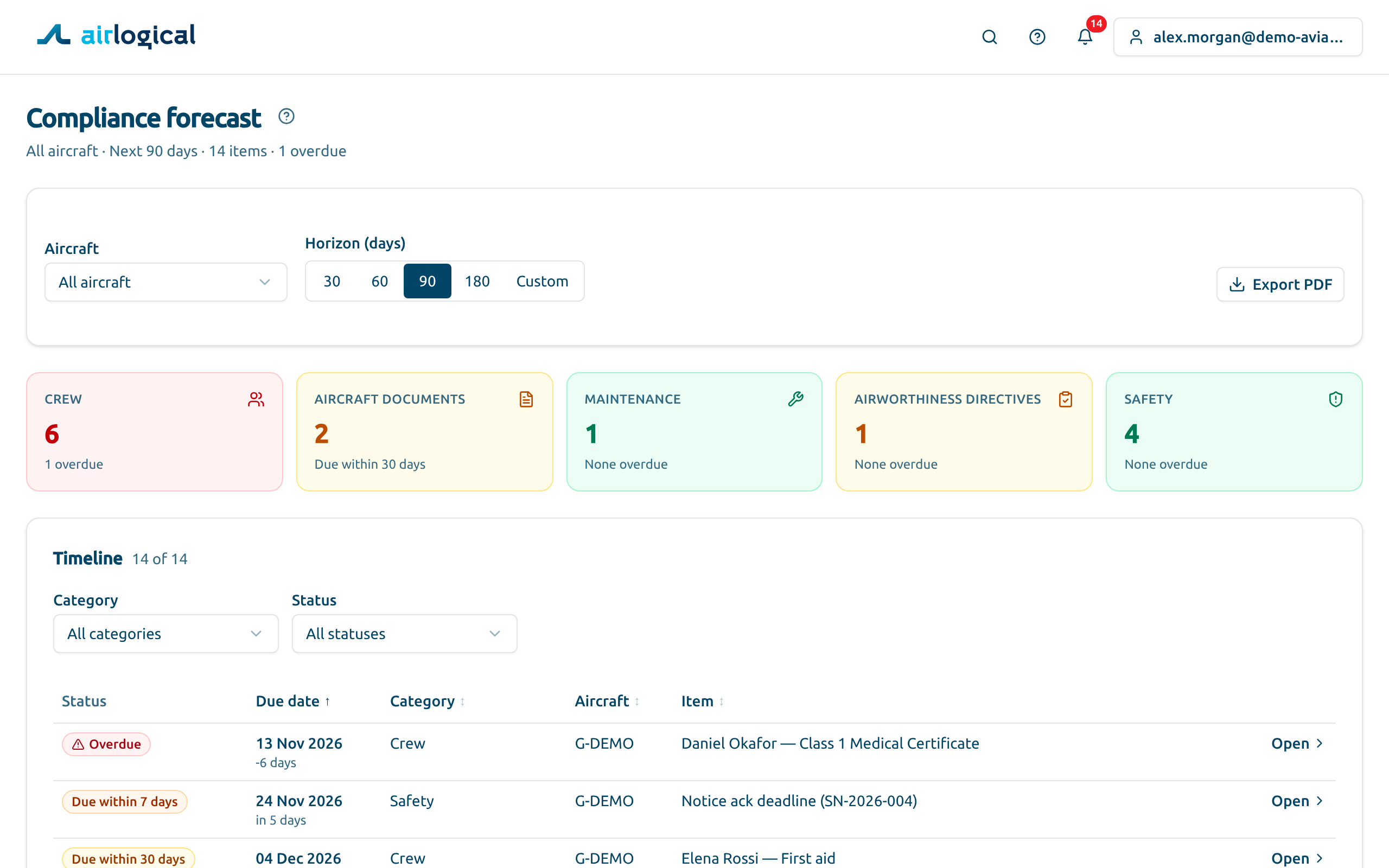
The compliance forecast brings every date-driven item into one list: aircraft paperwork, certificates, crew qualifications, maintenance, Airworthiness Directives (ADs) and safety follow-ups. It is read-only — each item is changed in the module it comes from.
Where to find it
- •From your account's sidebar, choose Compliance.
- •You can also use the quick search and type "Compliance forecast".
- •The forecast only shows items for the aircraft and crew you have access to. Archived aircraft, and crew members who are no longer active, are left out.
What it shows
The page has three parts.
- Scope bar — choose an aircraft (or All aircraft), an owner (shown when there is more than one), and how far ahead to look under Horizon (days): 30, 60, 90 or 180, or Custom up to a date you pick. The default is 90 days.
- Readiness strip — five cards: Crew, Aircraft documents, Maintenance, Airworthiness directives and Safety. Each shows how many items fall within the horizon (overdue ones included) and turns red or amber by the rules below. Click a card to filter the timeline to that category; click it again to clear.
- Timeline — one table with Status, Due date, Category, Aircraft and Item. It is sorted with the most overdue first, then the soonest due. You can sort by Due date, Category, Aircraft or Item, and filter by category and status (Clear filters removes both). On a phone, rows become cards.
| Card | Red when | Amber when |
|---|---|---|
| Crew | anything overdue | anything due within 30 days |
| Aircraft documents | anything overdue | anything due within 30 days |
| Maintenance | anything overdue | anything due within 14 days |
| Airworthiness directives | anything overdue | anything due at all |
| Safety | anything overdue | never amber |
What the statuses mean
| Status | Meaning |
|---|---|
| Overdue | The due date has passed |
| Due within 7 days | Due in the next week |
| Due within 30 days | Due in 8 to 30 days |
| Due within 90 days | Due in 31 to 90 days |
| OK | Due later than 90 days (only seen with a 180-day or custom horizon) |
The Status filter groups these as Overdue, Due, not overdue, Due within 30 days, and Due after 30 days.
Where the items come from
- •Aircraft documents — Certificate of Registration expiry, ARC expiry, the end date of active insurance policies, and aircraft and company certificates with an expiry date (company certificates show "Fleet-wide" in the Aircraft column).
- •Crew — active crew members' qualifications and certificates with an expiry date, and their passports, visas and work permits from the Documents tab. When a crew member holds a later-expiring document of the same type (a renewed passport), only the newer one is shown; visas listed as Other and work permits each stand on their own.
- •Maintenance — maintenance tasks with a due date, plus tasks and component life limits due by flight hours or cycles, projected onto a date (see Aircraft hours and the forecast).
- •Airworthiness directives — AD compliance deadlines and repeat inspections.
- •Safety — MOR submission deadlines and the follow-up reports after submission, hazard and risk-assessment reviews, corrective actions, drills, permit expiries, and notice acknowledgement deadlines and expiries.
If some items are due by hours or cycles but cannot be placed on a date, a note above the scope bar says how many. If those items (and MOR follow-ups) could not be loaded at all, the note says so and that the list is not an all-clear.
How to export a PDF
- Set the aircraft, owner, horizon and filters you want.
- Click Export PDF. The PDF opens in a new tab.
- It contains exactly the rows on screen, with a readiness summary, a breakdown by aircraft, and the date and time (UTC) it was exported.
How to act on an item
Click Open at the end of a row (on a phone, tap the card). Safety items open the record itself; other items open the aircraft's page, where you can go to the module that owns the item. A row with no aircraft to link to, such as a company-wide safety item, has no Open link. Once the underlying record is renewed or completed, the item changes the next time you open or refresh the forecast.
Tips
- •Look at the forecast weekly. Items in the 30-day band are the priority; items further out are the ones to plan now.
- •Every choice you make is kept in the page address, so you can bookmark or share a view and it opens the same way.
- •A crew member's expiry shows once per qualification, with their name in front of the item.