The defect register records physical findings on the aircraft — damage, wear, corrosion, system faults — and tracks them until they are repaired and closed. Each defect can carry its Minimum Equipment List (MEL) deferral, which the leg readiness check and the Maintenance summary read.
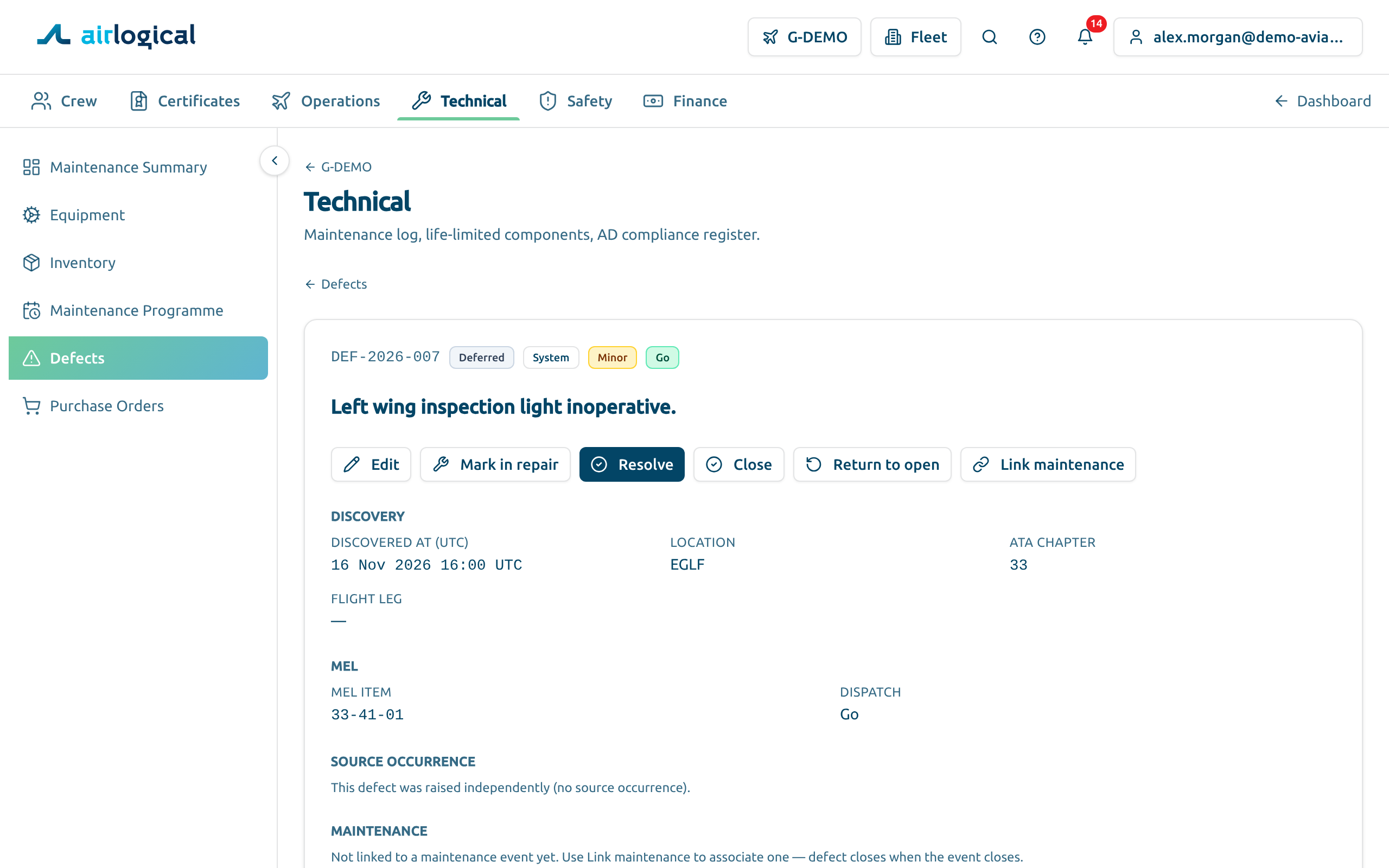
Where to find it
- •Open the aircraft, choose Technical, then Defects.
- •The Defects card on the Safety dashboard opens the same list.
- •Pilots and crew can reach it from My flying with the Report defect button on an upcoming flight; it opens the defect list, where you click New defect.
The list shows counts of Open, Deferred, In repair, Repaired and Closed defects, and can be filtered by status, type and severity.
How to record a defect
- Click New defect.
- Enter when it was discovered in UTC (required, and not in the future), where, and the ATA chapter if you know it.
- Choose the Defect type (default Other) and Severity (Major, Minor or Cosmetic; default Minor), and describe the defect (required).
- If it is being deferred, fill in the MEL fields (below).
- Click Create defect. A number in the form DEF-YYYY-NNN is given on save.
How to defer a defect under the MEL
- Open the defect and click Defer. The Defer defect dialog opens.
- Enter the MEL item reference and choose the MEL dispatch: Go, Go if (conditional) or No go.
- Choose the MEL category and the Deferral start date (today is filled in).
- Rectify by is filled in for you from the deferral start: category B adds 3 days, C adds 10 days and D adds 120 days. Category A has no fixed interval in the app, so enter the date yourself. You can overwrite the date in every case, but changing the category or start date again recalculates it for B, C and D.
- Confirm. The MEL details are saved and the status changes to Deferred. All four fields are required.
What the statuses mean
| Status | Meaning | Buttons offered |
|---|---|---|
| Open | Newly found, not yet dealt with | Defer, Mark in repair, Resolve, Close |
| Deferred | Carried under the MEL | Mark in repair, Resolve, Close, Return to open |
| In repair | Work under way | Resolve, Return to open |
| Repaired | Work done, awaiting any final checks | Close, Return to open |
| Closed | Finished; can no longer be edited | Reopen |
Every status except Closed also offers Edit and Link maintenance. Return to open (or Reopen on a Closed defect) sends the defect back to Open, for example when a fault recurs.
How to resolve and close a defect
- Click Resolve, describe what was repaired (parts used, sign-off reference — required), and confirm. The defect becomes Repaired, whatever its status was before.
- Once any post-repair checks are done, click Close.
- Link maintenance connects the defect to a maintenance event on the same aircraft. Choose the event from the Maintenance event list (each shows its title, due date and status; archived tasks are not listed) and click Save link. Choose Not linked to remove a link.
Delete is only offered for an Open defect with no maintenance link, and is refused if a safety occurrence refers to it. Otherwise close it, so the history stays intact.
How defects affect flights
On each leg's readiness check, an open, deferred or in-repair defect stops the trip being released when:
- •its MEL dispatch is No go;
- •its rectify-by date is before the flight ("MEL deferral ran out");
- •it has no MEL dispatch set ("Open and not deferred under the MEL").
A Go if defect shows a warning instead, as a reminder that dispatch conditions apply. Only the first matching reason is shown for each defect. On the Maintenance summary, every open, deferred or in-repair defect with a rectify-by date counts as an active MEL item (the card reads Watch), and turns the Airworthiness card to Action required once that date has passed.
Who can do this
- •Account owners and account admins can do everything.
- •Other users need Technical or Safety access to open the Defects page: Read-only to view, Read & write to record and change defects. They also need at least Read-only Aircraft access.
- •With Read-only access to both Technical and Safety the page is view-only: New defect and the buttons on a defect are hidden. Read & write on either one is enough to record and change defects.
- •Defects on an archived aircraft cannot be changed; their action buttons are hidden.
Tips
- •If a defect was raised from a safety occurrence, its detail page shows the source occurrence with a link back to it.
- •Keep the rectify-by date honest: the summary and readiness checks use it exactly as entered.