Releasing moves a trip from Planned to Dispatched. It runs the checks on every leg, shows you the results, and keeps a record of them with your name and the time.
Where to find it
- Open the trip. It must be in Planned.
- In the Workflow bar, click Release.
What the Release dialog shows
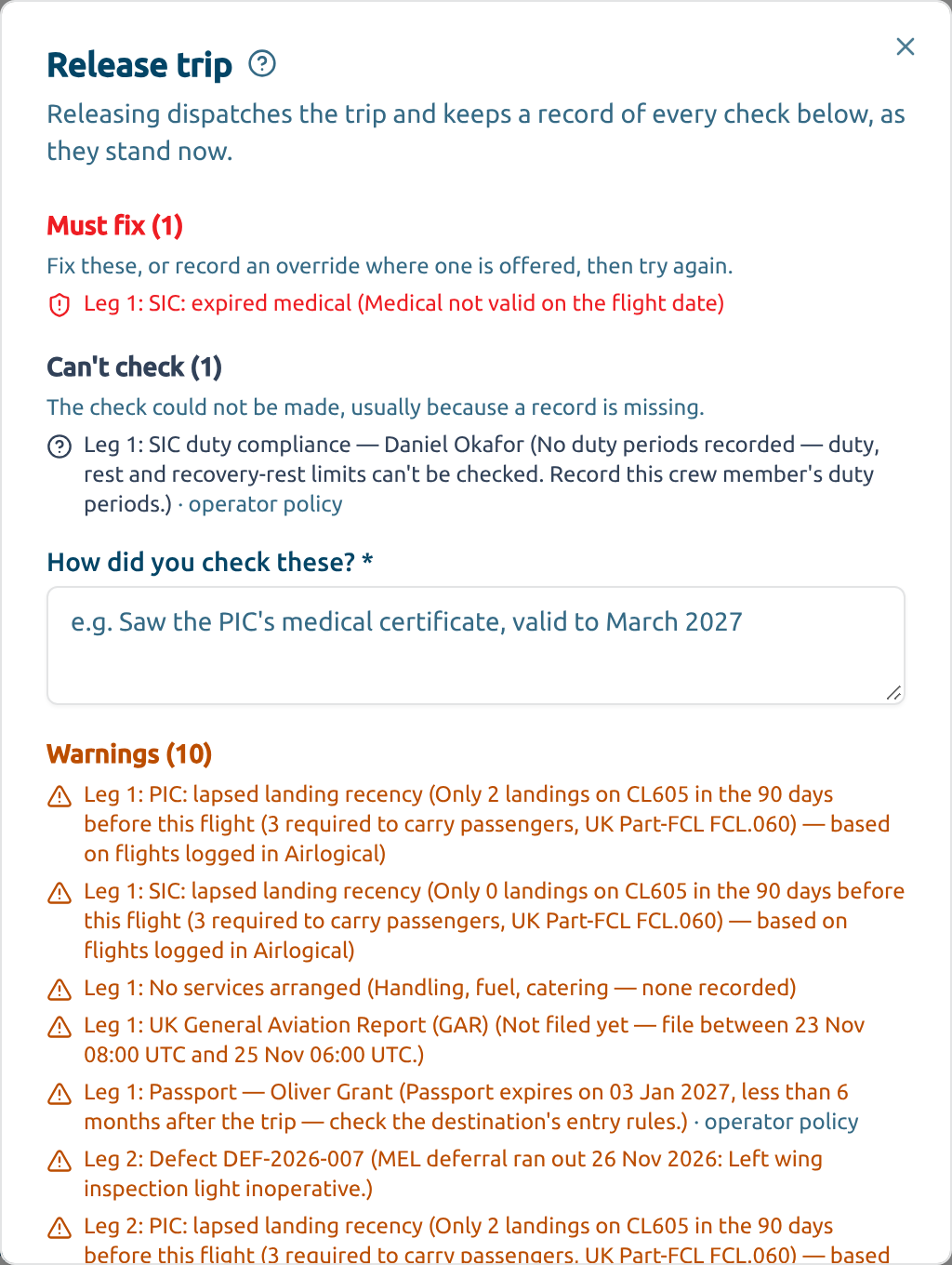
The checks from every leg's pre-departure checklist, grouped:
- •Must fix: everything Blocked. Each line names its leg, for example "Leg 2: PIC not assigned".
- •Can't check: checks that could not be made, usually because a record is missing.
- •Warnings: warnings and anything still pending. These do not stop release, except a required permit still awaiting the authority or a US eAPIS manifest not yet approved, which are listed under Must fix.
- •A single line saying how many checks passed.
Checks that are your operator's own policy are marked "operator policy".
What stops a release
- •The trip has no legs.
- •Anything is in Must fix. Fix it, or record an override where one is offered, then open Release again.
- •Anything is in Can't check and you have not said how you checked it. Type your answer in How did you check these? (at least 10 characters), for example what document you saw and its expiry.
- •You are not allowed to release this trip.
How to release
- Click Release and wait for Running the checks… to finish.
- Work through Must fix until it is empty.
- If Can't check has items, fill in How did you check these?.
- Read the Warnings.
- Click Release. The trip moves to Dispatched and the Workflow bar shows who released it and when.
What happens if something changes after release
The release records what it was decided on: each leg's aircraft, scheduled departure and arrival times (STD and STA), departure and arrival airports, PIC, SIC, cabin crew and pax count. Changes to the passenger list itself are not tracked.
If any of these change afterwards, or a leg is added or removed, the Workflow bar shows an amber note: "Changed since release — check again before departure", followed by what changed, for example "Leg 1: PIC changed".
The trip stays Dispatched. A dispatched trip cannot go back to Planned, so it cannot be released a second time. Open each changed leg's checklist and check it again before departure.
Who can do this
Only the account owner, an account admin or the PIC of any leg on the trip can release it. They need Operations read access, not write: a PIC with read-only Operations access sees the Workflow bar with just the Release button. Someone with Operations read and write access who cannot release can still open the dialog and see the checks, but the Release button in the dialog stays disabled and a line says who can release.
Tips
- •Clear the checklists on each leg first. The dialog then only confirms what you already know.
- •Your answer to How did you check these? is kept with the release record.