The occurrence register records anything that happened that affects safety, from an accident to a bird strike or a near miss. If an occurrence must be reported to an authority as a Mandatory Occurrence Report (MOR), Airlogical tracks the deadline for you.
Where to find it
Open the aircraft, choose Safety, then Occurrence Reports in the left sidebar. The counters at the top show how many occurrences are Draft, Open, Under investigation, Pending review and Closed, and how many MORs are pending. You can filter by status, class, severity and whether an occurrence is MOR-reportable.
A report that is not about one aircraft (for example a company procedure) can be recorded by the account owner or an administrator: tick Not about a specific aircraft when creating it. It is marked Fleet-wide and appears in the Occurrence Reports of every aircraft in the account. The Safety page in the fleet sidebar shows the whole company's safety summary.
How to record an occurrence
- Select New occurrence.
- Under When & where, enter Occurred at (UTC) and check When you became aware (UTC), which starts filled in with the current time. Enter both times in UTC, not your local time. Add phase of flight, location type, location ICAO code, coordinates and altitude if you know them.
- Under Classification, choose the Class (for example Incident, Near miss, Bird strike, Medical event) and the Severity. Bird strikes and medical events show a few extra fields.
- Under Description, give a one-line Title, then describe What happened? and any Immediate actions.
- Under Reporter, choose the Reporter role. Tick Confidential if the reporter's identity should be stored separately (see below), then give a name, email or phone, or choose the Anonymous role for a fully anonymous report. Confidential can only be set when the occurrence is first recorded.
- Under Regulatory (MOR), tick MOR-reportable if it must be reported, and choose the authority.
- Select Create occurrence. It gets a number (OCC-year-number), starts as Open and appears in the list. Select it to open its page.
How to move an occurrence through investigation
Use the buttons at the top of the occurrence page:
- Investigate — marks it as under investigation.
- Pending review — the investigation is done and waiting for sign-off.
- Close — asks for a Closure summary (root cause, what was done, lessons learned), then Close occurrence.
- Reopen — brings a closed occurrence back to Open.
- Reject — for a report that turns out not to be a safety occurrence.
You can also use Link to leg to attach the occurrence to a flight leg: choose it from the Flight leg list, which shows this aircraft's legs from the last 12 months and the next 90 days, or choose Not linked to remove the link. And, for ground damage, bird strike and foreign object damage, Create defect to raise a technical defect from it.
How MOR tracking works
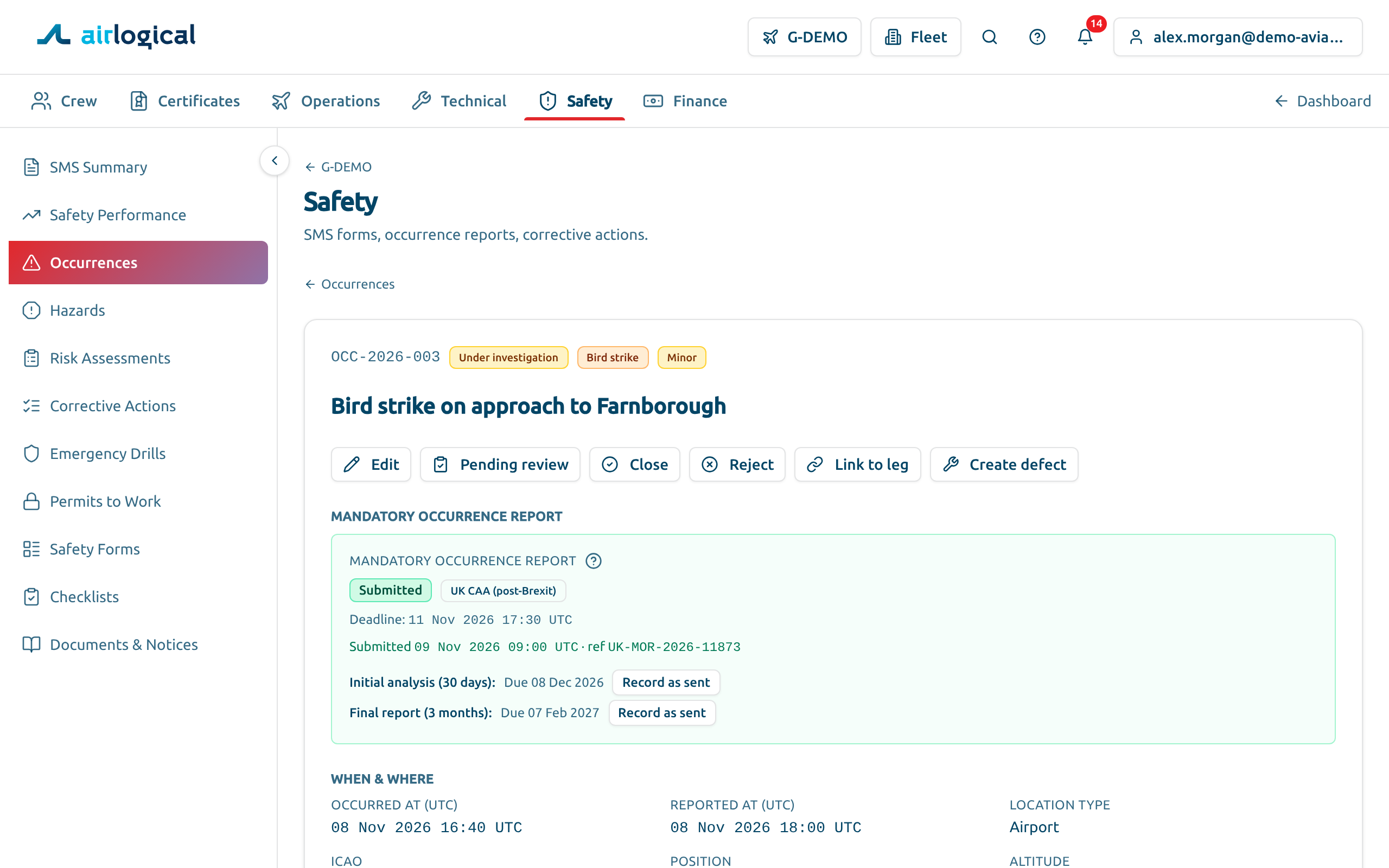
When an occurrence is ticked MOR-reportable, a panel on its page shows the Mandatory Occurrence Report countdown and its deadline in UTC.
- •The deadline is 72 hours from When you became aware (UTC). If you clear that box on a new occurrence, the clock starts from the moment you save it. If you clear it when editing, it counts from Occurred at.
- •Changing either time recalculates the deadline.
- •The account owner and account admins get a reminder when 48 hours, 24 hours and 6 hours are left, and another once the deadline has passed.
When you have sent the report to the authority:
- Select Submit MOR.
- Confirm the Authority, and enter the Authority reference and any Notes.
- Leave A safety risk was identified ticked if follow-up reports are due; untick it if not (for example, a report closed on issue).
- Select Submit. The panel turns green and shows when it was submitted.
Submit MOR records that you submitted the report. It does not send anything to the authority for you.
When a safety risk was identified, the panel then shows two follow-up dates, counted from when you became aware of the occurrence: Initial analysis (30 days) and Final report (3 months). When you send each one, select Record as sent beside it. The owner and admins are notified if either becomes overdue.
If an occurrence turns out not to be reportable
Use Reclassify as not reportable and confirm with Reclassify, or untick MOR-reportable when editing. This is only possible before the MOR has been submitted, and while the occurrence is not closed or rejected. The register keeps the entry, so the decision not to report stays on file.
Changing or closing an occurrence in Airlogical never retracts a report already sent to the authority. Any update must be filed with the authority.
What the statuses mean
| Status | Meaning |
|---|---|
| Draft | Not used for new reports: occurrences are created as Open. An older draft can be moved on with Open |
| Open | In the register, not yet being investigated |
| Under investigation | Being looked into |
| Pending review | Investigation finished, waiting for sign-off |
| Closed | Finished, with a closure summary. Can be reopened |
| Rejected | Not a safety occurrence. Cannot be reopened |
The MOR countdown shows grey while more than 48 hours are left, amber under 48 hours, red under 12 hours or when overdue, and green once submitted.
Confidential reports
A confidential reporter's name and contact details are kept apart from the occurrence. Other users see "Identity hidden". Account owners, account admins and active crew on the aircraft with Read & write access to Safety see a Reveal identity button instead. Every reveal is recorded in the audit log.
Who can do this
- •Viewing needs at least Read-only access to Safety on the aircraft.
- •Recording, editing and moving an occurrence on, submitting an MOR and recording follow-ups all need Read & write access to Safety, or being an account owner or admin.
- •Closed and rejected occurrences can no longer be edited.