Users & access is where account owners and admins decide who can sign in to the account. It lists everyone with access, pending invitations, and the account admins.
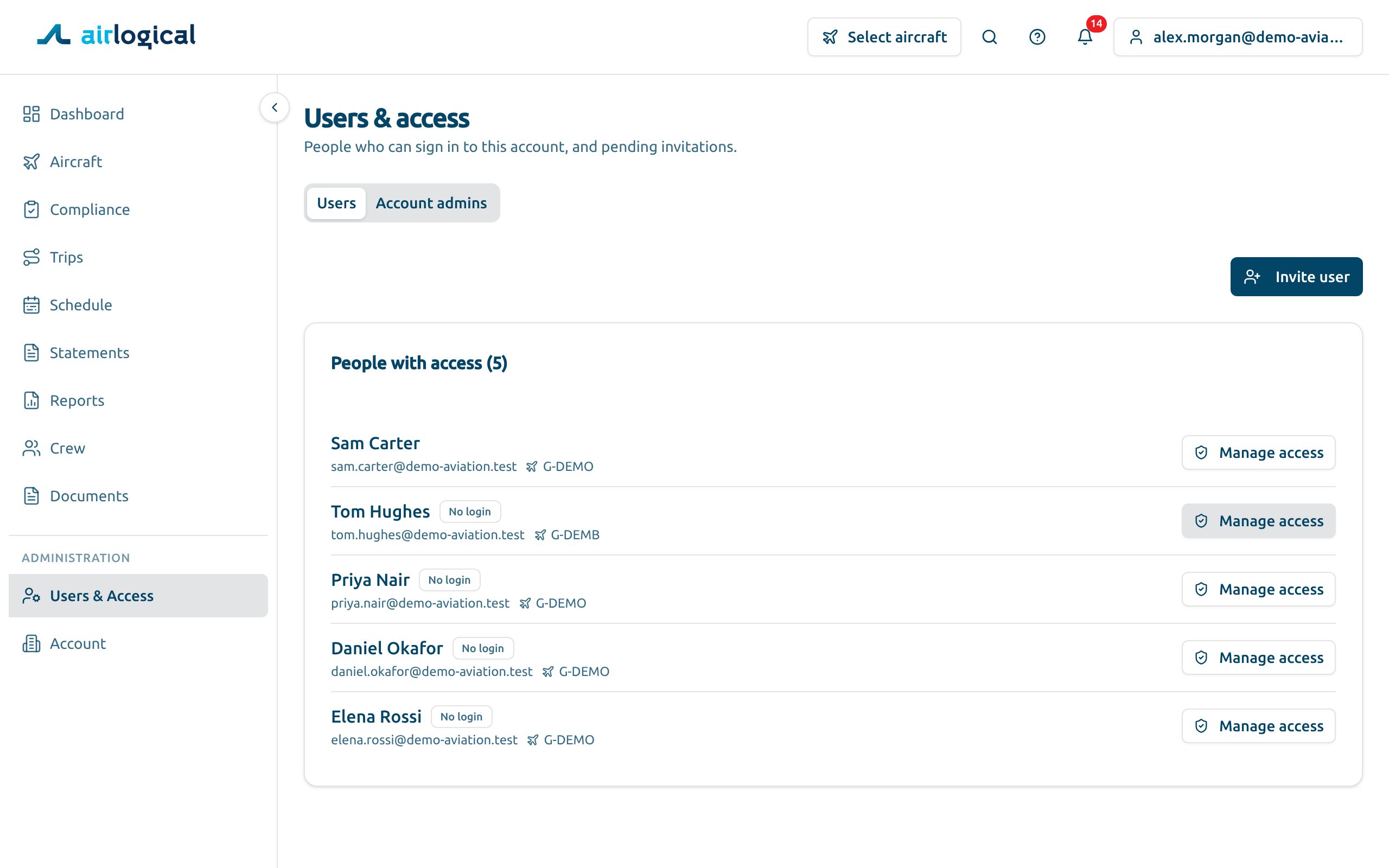
Where to find it
From an aircraft, select Fleet in the header to open your fleet area. In the left sidebar, under Administration, choose Users & Access. The page has two tabs: Users and Account admins.
How to invite a crew member or other user
- On the Users tab, select Invite user.
- Enter their Full name and Email, and a Phone number if you have one.
- Choose a Permission preset. This sets their access to each part of the app (see the table below).
- Under Aircraft access, tick every aircraft they should be on.
- Select Send invitation. They get one email to set up their login, and their access is created on each aircraft you ticked.
Pending invitations are listed at the top of the tab. Use Resend to send the email again (this gives it a fresh 7 days), or Cancel to withdraw it. An invitation lasts 7 days, and only one crew invitation can be pending for an email address in the account at a time.
How to change what someone can do
- On the Users tab, find the person under People with access.
- Select Manage access. This opens their crew profile.
- Select Permissions to change their access to each section. See Setting crew permissions.
A person marked No login has a crew profile but no account to sign in with. Inactive marks a crew profile that is no longer active; inactive people are listed but not counted in the number beside People with access.
The permission presets
| Preset | Gives |
|---|---|
| Multi-aircraft manager (preset) | Read & write on aircraft, operations, compliance and certificates; read-only on technical, safety and finance |
| Operations manager | Read & write on operations; read-only on aircraft, certificates, compliance and technical |
| Compliance manager | Read & write on compliance and certificates; read-only on aircraft, operations, technical and safety |
| Safety manager | Read & write on safety; read-only on aircraft, compliance and operations |
| Maintenance manager | Read & write on technical and certificates; read-only on aircraft, compliance and operations |
| Finance manager | Read & write on finance; read-only on aircraft, operations and compliance |
| Crew member | Read-only on aircraft, operations and certificates |
A preset is a starting point. Anything not listed is set to No access, and you can change each section afterwards. There is no preset for an aircraft owner: the owner portal and the fleet area are open to account owners and admins only.
How to manage account admins
An account admin has the same access as the account owner, including editing the account details on the Account page.
- Open the Account admins tab.
- Select Invite admin, enter their email and full name (and phone if you like), and select Send invitation.
- To remove an admin, use the bin button beside their name and confirm Remove admin. They lose all administrative access to the account straight away. You cannot remove yourself.
Pending admin invitations can be resent or cancelled from the same tab. An admin invitation also lasts 7 days.
Who can do this
- •Only account owners and account admins can open Users & Access, invite people, change permissions and manage admins.
- •Permissions can be managed for crew attached to one aircraft and for crew who work across the whole fleet.
- •The fleet area as a whole (including Users & Access, Account, Statements and Reports) is open to account owners and admins only, whatever permission preset a person has. Anyone else who follows a link to it is shown an access-denied page.