Every licence, rating, medical and check a crew member holds is recorded as a qualification on their crew profile. Airlogical uses these records for the Compliance page, the expiry warnings on the crew list and the readiness checks on every leg.
Where to find it
- •One person: Crew, then open the crew member, then the Qualifications tab. Operator proficiency checks, line checks and dangerous goods training sit on the separate Recurrent Training tab.
- •Everyone on an aircraft: Crew, then Compliance in the Crew module's left-hand menu. This shows one row per active crew member and one column per currency item.
What you can record
| Group | Records |
|---|---|
| Licences | ATPL, CPL, MPL, PPL, LAPL |
| Ratings | Type or class rating, instrument rating (IR), night rating, UK IMC rating |
| Instructor certificates | FI, TRI, CRI |
| Medical | Class 1, Class 2, LAPL, cabin crew aero-medical assessment (see Crew Medicals) |
| Language proficiency | English language proficiency, with the level |
| Training & checks | OPC, line check, dangerous goods training, RVSM, PBN, CRM, security, cabin crew attestation, safety and emergency procedures, first aid (see Recurrent Checks and Cabin Crew) |
Licences and medicals are recorded here only, not as documents. Recency is worked out from logged flights and simulator sessions (see Crew Recency), so it is not added as a qualification.
How to add a qualification
- Open the crew member and go to the Qualifications tab (or Recurrent Training for an OPC, line check or dangerous goods record).
- Click Add qualification (or Add recurrent training).
- Choose the Type. For a type rating, enter the ICAO type designator (for example CL605). For an instrument rating, enter SE or ME. For English language proficiency, enter the level: 4, 5 or 6. For dangerous goods, enter the category, and for aerodrome competence the aerodrome's ICAO code.
- Fill in the issuer, reference number and, for a licence, the two-letter Issuing state.
- Enter the exam or check date as the Issue date.
- Enter the Expiry date from the certificate. Where Airlogical can work it out, a calculated date appears under the field (see below).
- Click Add.
To attach a scan of the certificate, save the qualification first, then edit it: the file upload appears once the record exists. You can also paste a link instead.
The calculated expiry
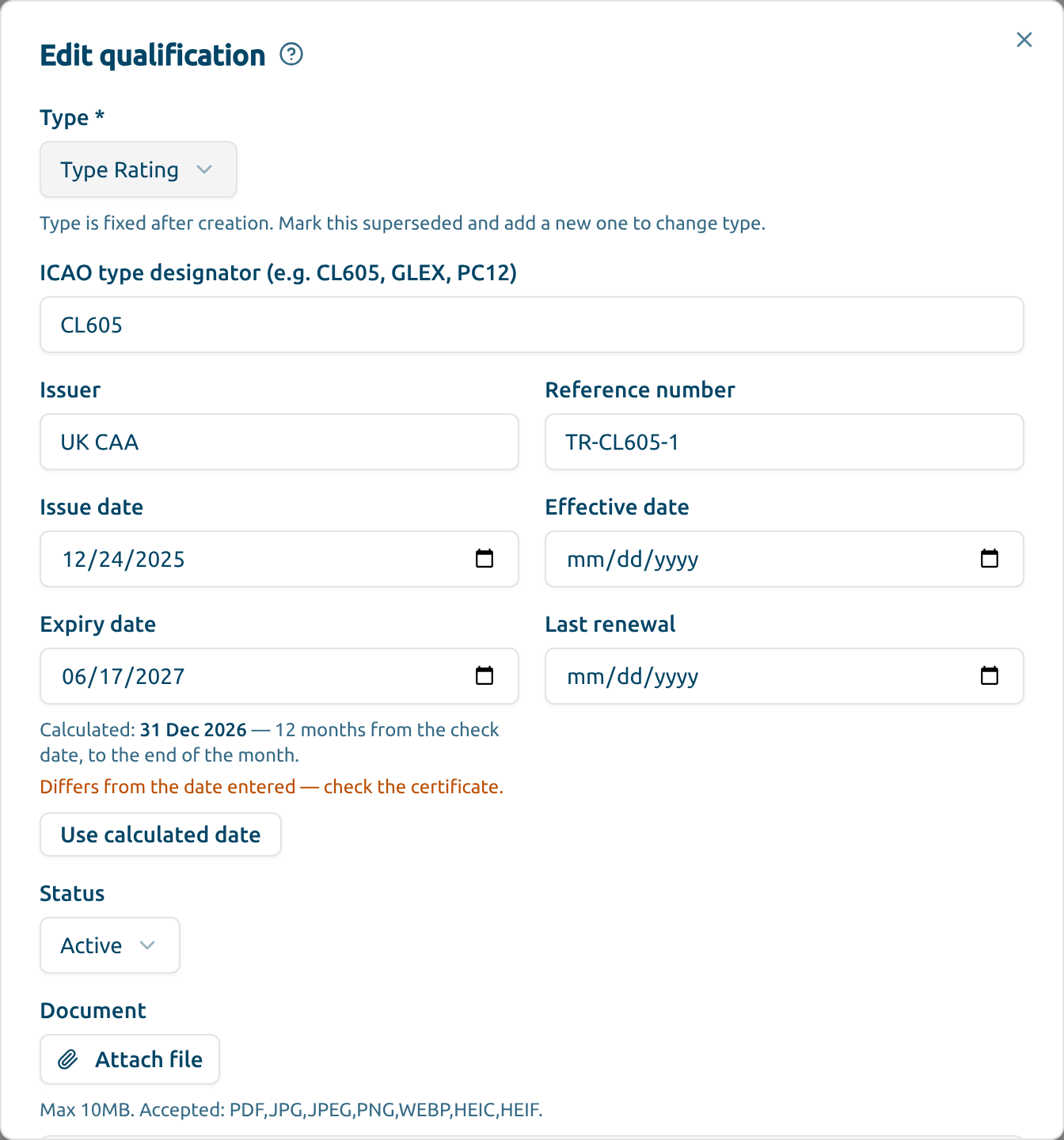
For medicals, the cabin crew aero-medical assessment, type ratings, instrument ratings and English language proficiency, the form works out the expiry from the issue date and shows it as Calculated: with a short explanation of how it got there.
- •English language proficiency: Level 4 runs 4 years and Level 5 runs 6 years from the assessment; Level 6 does not expire, so the form says so and suggests no date.
- •Click Use calculated date to copy it into the expiry field.
- •If you have typed a different date, the form says Differs from the date entered — check the certificate.
- •The date on the certificate is always the record. The calculation is only a suggestion.
For type and instrument ratings the calculation runs 12 months to the end of the month. If the check was done in the 3 months before the previous expiry, it runs from that previous expiry instead. Airlogical finds the previous expiry from the crew member's other records of the same type (and, for type ratings, the same designator), whatever their status, so keep the old record until the new one is saved.
How to change or renew a qualification
- On the qualification, click the pencil icon.
- Change the details, or set the Status.
- Click Save changes.
The type cannot be changed after a record is created. To change it, mark the record Superseded and add a new one. To delete a record, click the bin icon and confirm.
What the statuses mean
| Status | Meaning |
|---|---|
| Active | The record is in use. Its expiry date decides whether it is current. |
| Expired | Marked as no longer valid. |
| Suspended | Held but not usable at the moment. |
| Superseded | Replaced by a newer record. Kept for history. |
Only Active records count in the readiness checks. Airlogical does not change the stored status when the expiry date passes, but the badge beside an Active record follows its expiry date: it reads Active while the record is in date, Expiring within 30 days of the expiry, and Expired once the date has passed. Records you have marked Expired, Suspended or Superseded show that status whatever the date.
Reading the Compliance page
Each cell is coloured:
| Colour | Meaning |
|---|---|
| Valid | In date, or a record with no expiry (for example a licence) |
| Expiring ≤30d | Expires within 30 days |
| Expired / not current | Past its expiry, or not marked Active |
| Not held | Nothing recorded |
| Not applicable | Not a record this person's role needs (pilot columns for cabin crew, and the reverse) |
For licence, medical, IR, OPC, line check and language proficiency, the cell shows the crew member's best record, so an old lapsed record does not hide a valid new one. For type ratings it shows the worst, so one expired type rating among several still shows red. Records marked Superseded are left out of the Compliance page altogether, so an old record you have replaced never turns a cell red. A record marked Expired or Suspended counts as expired.
The Status column rolls each row up. The crew list shows the same status:
| Status | Meaning |
|---|---|
| Current | Nothing expired or expiring; a pilot has a licence and medical on file, cabin crew an aero-medical assessment |
| Expiring soon | Something expires within 30 days |
| Records missing | A licence, medical or cabin crew medical is not on file, or the person has neither a licence nor a cabin crew qualification |
| Not current | At least one item, or a passport, visa or work permit, has expired |
This is an overview of expiry dates. Whether someone can fly a particular flight is decided by that leg's pre-flight checks.
Who can do this
- •Anyone with at least Read-only on the Aircraft section for that aircraft, and account owners and admins, can view its crew and the Compliance page. Medical records have extra privacy rules (see Crew Medicals).
- •Adding, editing and deleting qualifications needs Read & write on the Aircraft section for that aircraft, or account owner or admin. For crew who are not attached to one aircraft, it needs account owner or admin. Without that access the add, edit and delete buttons are not shown.
- •Nothing can be changed on an archived aircraft.
Tips
- •Type ratings are matched against the aircraft's Type or class rating and ICAO type designator (spaces and capitals do not matter). Use the same designator, or the rating check on a leg will not find it.
- •A record with no expiry date is shown as valid on the Compliance page, but the readiness checks say they cannot check it. Enter the expiry wherever one exists.