Before each leg, Airlogical checks every assigned crew member's duty, flight time and rest. The results appear in the Crew duty (FTL) group of the leg's pre-departure checklist.
Where to find it
- •Results: open a trip, open a leg's Pre-departure checklist and look at Crew duty (FTL).
- •The aircraft's duty scheme: edit the aircraft and find Flight-time-limitation scheme.
- •A crew member's records: open the crew member and choose the Duty & FTL tab.
How to set the aircraft's duty scheme
- Edit the aircraft.
- Under Flight-time-limitation scheme, choose the scheme your operator holds:
- •ORO.FTL (commercial air transport): charter other than air taxi, emergency medical and single-pilot. The limits are fixed in law.
- •UK CAA-approved scheme (CAP 371): UK air taxi, emergency medical and single-pilot charter.
- •Approved scheme under Subpart Q (EU): EU air taxi, emergency medical and single-pilot charter.
- •Operator's own limits (Operations Manual): NCC and SPO flying.
- •No duty limits (information only): private (NCO) flying.
- For a CAP 371 or Subpart Q scheme, fill in every number from your approved scheme. The CAP 371 duty boxes start at 60, 95 and 190 hours for pilots and 65, 105 and 210 hours for cabin crew; check them against your approval.
- For your own limits, fill in the figures from your Operations Manual. They start at the ORO.FTL figures, and an empty box uses the ORO.FTL figure.
- Leave Duty and rest limits also apply to cabin crew ticked if your scheme covers cabin crew. Untick it to check pilots only.
- Save.
While no scheme is set, a commercial leg shows Can't check, an NCC or SPO leg shows a warning, and an NCO leg shows information only. A commercial leg on an aircraft set to your own limits or to no limits also shows Can't check: a commercial flight is flown under ORO.FTL or an approved scheme. ORO.FTL, CAP 371 and Subpart Q are offered for aeroplanes only.
Law or operator policy
| Scheme | Tag | When a limit is passed |
|---|---|---|
| ORO.FTL, CAP 371, Subpart Q | Law | Blocked. Nobody can override it |
| Operator's own limits | Operator policy | Blocked. The account owner, an account admin or the leg's PIC can override it with a reason |
| No duty limits | none | Information only |
Commander's discretion never clears a blocked check. See Overriding a duty or training check.
What is checked for each crew member
| Check | What it looks at |
|---|---|
| Home base | Whether the crew member has a home base. Blocked under ORO.FTL, CAP 371 or Subpart Q when none is assigned (ORO.FTL.200) |
| Duty compliance | Duty over 7, 14 and 28 days, and flight time over 28 days, the calendar year and 12 calendar months, including this leg |
| Flight duty period | The planned duty, from report to the last arrival, against the maximum in the ORO.FTL table |
| Rest before next duty | Time off since the last completed duty period against the rest required |
| Recovery rest | Whether a long recovery rest has been taken often enough |
| UK flight-time limit | Pilots on UK-registered aircraft on NCC, SPO or commercial legs |
Duty and flight time
Under ORO.FTL: 60 hours of duty in 7 days, 110 in 14 days and 190 in 28 days; 100 hours of flight time in 28 days, 900 in the calendar year and 1,000 in 12 calendar months. The 12 months move a month at a time, from the 1st of the month eleven months back. Exactly at a limit is within it. Under the other schemes the numbers are the ones on the aircraft.
The line turns to Warning at 80% of a limit, which is a setting of this app, not the law. If the crew member has no duty periods recorded, it shows Can't check unless their flight time alone is already over or near a limit. If a CAP 371 or Subpart Q number is missing on the aircraft, it shows Can't check and names the missing numbers.
Flight duty period
The planned flight duty period runs from report to the last arrival of the duty. When the leg is attached to a recorded duty period, the report time is that duty's and the end is the latest arrival of its legs. Otherwise the app estimates it from the trip: legs less than 10 hours apart count as one duty, from the first departure to the last arrival, and the line says it is an estimate.
The maximum comes from the table in ORO.FTL.205(b)(1), by local report time and number of sectors. For example, a report between 17:00 and 04:59 allows 10:00 for 4 sectors, 09:30 for 5 and 09:00 for 6 to 10. The local time is the time at the departure airport. Over the maximum is Blocked.
It shows Can't check when:
- •the scheme is CAP 371 or Subpart Q (their own tables are not built in);
- •the duty has more than 10 sectors (the table stops at 10);
- •the leg has an augmented crew (the number of extra pilots and the rest facility class are not recorded);
- •the departure airport is more than 2 hours from the crew member's home-base time, because the app cannot tell whether they are acclimatised;
- •the departure airport's or the home base's time zone is not known, or the planned end of the duty is not known.
Rest before next duty
At home base the rest must be at least as long as the duty before it and never less than 12 hours. Away from home base it must be at least as long as the duty before it and never less than 10 hours. The place of rest is the airport where the crew member last landed before the rest. If the rest is long enough for home base it passes, and if it is too short even for away it is Blocked; in between, the app needs the crew member's home base airport and where they landed, and shows Can't check without them.
Recovery rest
A recovery rest is at least 36 hours in a row, including two local nights. A local night is 8 hours between 22:00 and 08:00 local time where the rest is taken, which the app reads from the airport where the crew member last landed. No more than 168 hours may pass from the end of one recovery rest to the start of the next, so the app counts to the end of the duty being checked. Time off right up to the duty's report time counts. If the time zone of the place of rest is not known, a rest that could qualify shows Can't check, never a pass.
The records the checks need
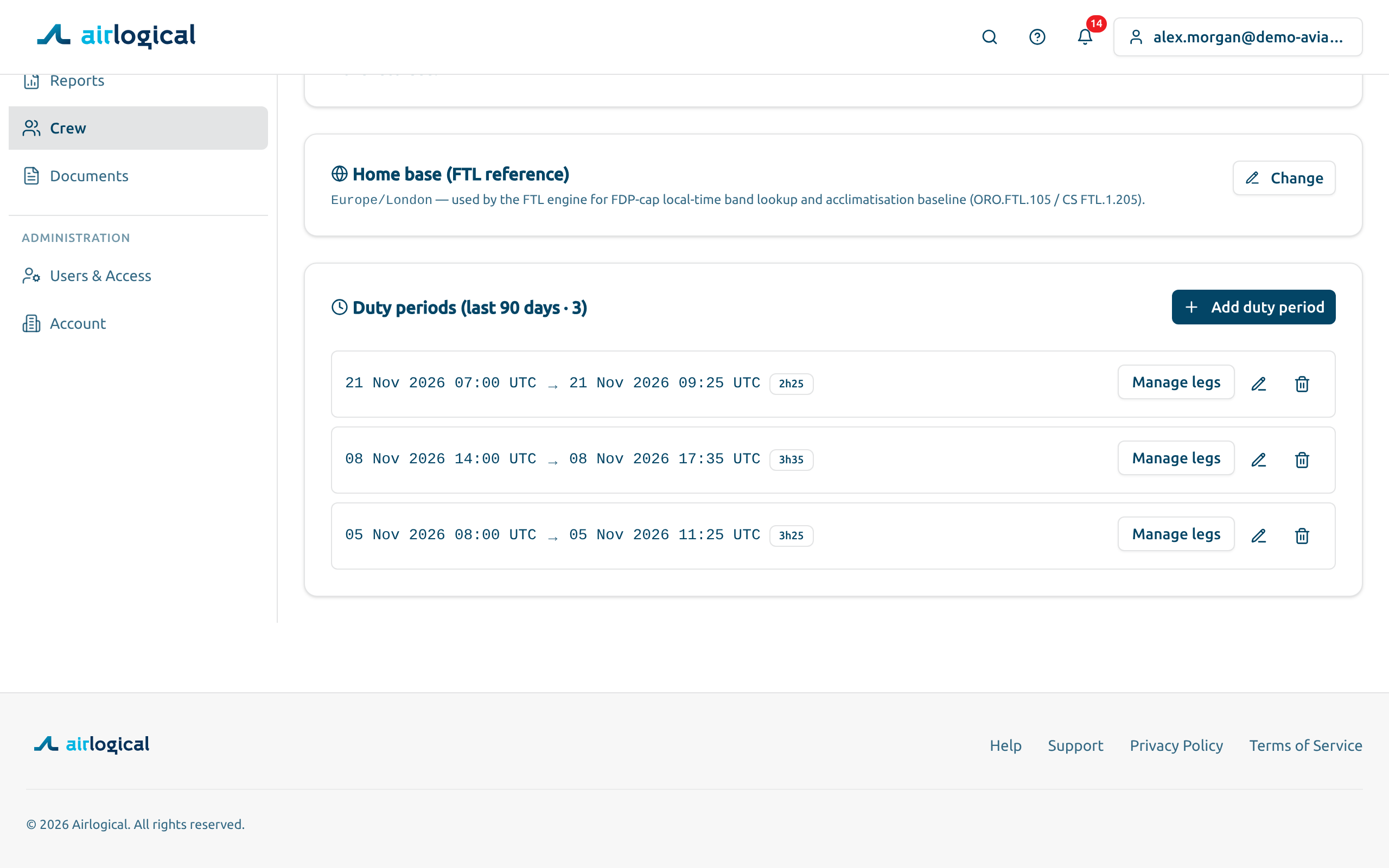
On the crew member's Duty & FTL tab:
- Home base (FTL reference): click Assign, enter the Home base airport (ICAO), leave the time zone as the airport's, and give a reason.
- Duty periods: click Add duty period and enter the report time and off-duty time in UTC (leave off-duty blank if still on duty), the operation type, and any augmented crew or standby. Aircraft starts as the crew member's aircraft; pick another from the list, or choose None — standby / fleet-wide. An aircraft is required for NCC, SPO and commercial duty.
- On a duty period, click Manage legs and click Assign beside each leg flown in it. Legs are offered where the person is PIC, SIC or cabin crew, on the duty's aircraft (or the crew member's own aircraft if the duty has none), with a scheduled or actual time from 12 hours before the report time to 12 hours after off-duty.
- Flight time with other operators: record time flown elsewhere so the UK flight-time limit counts it.
Flight time is taken from legs that have both an actual off-blocks time (ATD) and an actual on-blocks time (ATA) entered. It is the time between the two.
Who can do this
- •Setting the aircraft's scheme: whoever can edit the aircraft.
- •Assigning a home base: the account owner or an account admin. Only they see the Assign or Change button.
- •Adding duty periods: Add duty period, Manage legs and the edit and delete buttons show to people with Operations read and write access on the crew member's aircraft. For a crew member not tied to an aircraft, they show to the account owner and account admins.
- •None of these buttons show while the crew member's aircraft is archived.
- •Flight time with other operators: the pilot themself, the account owner and account admins.
Tips
- •A crew member with no duty periods recorded shows Duty compliance as Can't check. Add their duty periods and the check runs.
- •Attach legs to duty periods so the flight duty period uses the real report time rather than an estimate.
- •If the duty data cannot be loaded, the checklist shows a warning saying so, rather than a clean result.