Every leg on a trip page has a readiness badge and a Pre-departure checklist underneath it. The checklist shows what Airlogical checked for that leg and what it found.
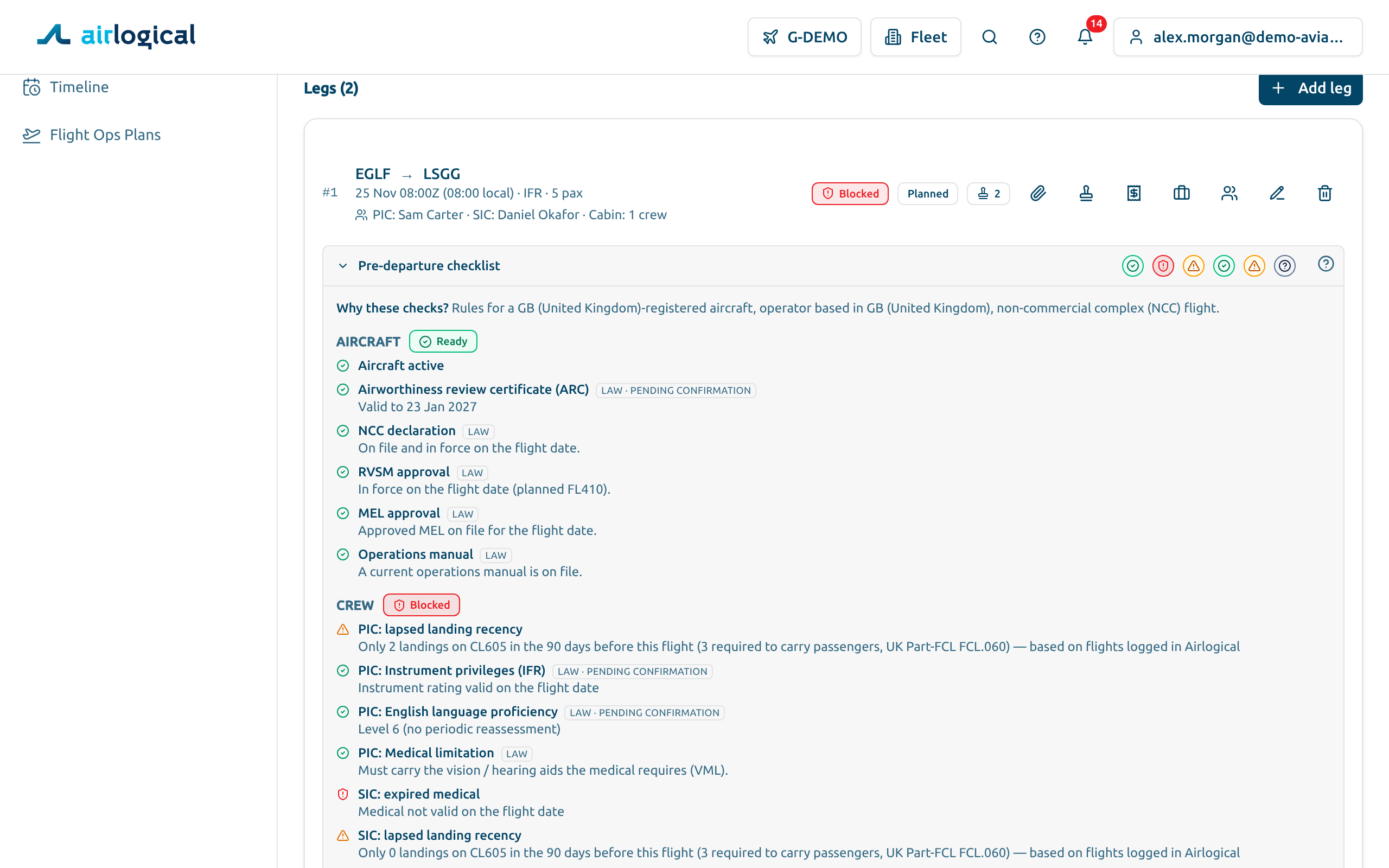
Where to find it
- Open the aircraft, choose Operations, then open a trip.
- Each leg row shows a badge for the leg as a whole.
- Click Pre-departure checklist under the leg to open it. Coloured dots on the bar show the state of each group.
What the states mean
The leg's badge and each group's badge show the worst state inside them.
| Badge | What it means |
|---|---|
| Blocked | Something is wrong and must be fixed before the trip can be released |
| Can't check | The check could not be made, usually because a record is missing. Nothing is known to be wrong |
| Warning | Something needs attention. It does not stop release |
| Pending | Waiting on someone else, such as a supplier confirming a service or an authority answering a permit |
| Ready | Checked and fine |
| N/A | Nothing to check |
Licences, medicals and certificates are judged on the date of the flight, not today. A medical that runs out before a future leg shows as a problem now.
The groups
- •Aircraft: the aircraft's status (grounded, document overdue or unavailable blocks; maintenance due or restricted warns), its ARC (or certificate of airworthiness) and certificate of registration, open ADs and defects, maintenance in progress or without a release to service, life-limited components, the operator's authority and approvals for the leg, and whether the state of registry and operator country are recorded.
- •Crew: a PIC must be assigned. Each pilot's licence, rating, medical and landing recency. On charter (ORO) legs a pilot aged 60 to 64 needs a co-pilot under 60, and from 65 may not fly; a PPL or LAPL holder flying at night needs a night rating. Then instrument privileges (an IFR leg needs a valid instrument rating), language proficiency, medical limitations and the operator's own recurrent training where set up. Cabin crew are checked too, along with the minimum number of cabin crew where it applies. Anyone on approved leave on the flight date shows an "On approved leave" warning; if leave cannot be loaded, an Approved leave item shows Can't check. A missing co-pilot (SIC) blocks when the aircraft's Minimum flight crew is two pilots. On charter (ORO) legs flown under IFR or at night it is a warning, because two pilots are needed unless the single-pilot conditions are met. On NCC and SPO legs it is a warning only while the aircraft's minimum flight crew is not recorded. Otherwise nothing is shown.
- •Services: each service is Ready once confirmed and Pending until then. No services at all is a warning.
- •Permits: a permit marked Required or Denied blocks. Applied is Pending. Granted is Ready. UK GAR and US eAPIS filings are not shown here: they appear under Border & passports.
- •Border & passports: border filings and passport expiry. See Border filings and permits.
- •Crew duty (FTL): duty, flight-time and rest checks for each crew member. See Crew duty limits (FTL).
Where each check comes from
Some checks carry a small tag:
- •Law: a legal rule. Apart from some crew duty checks, these cannot be overridden. See Overriding a duty or training check.
- •Operator policy: your operator's own rule. Some of these can be overridden or acknowledged by a named person with a reason. Those show an Override or Acknowledge button.
Open the checklist and read Why these checks? to see the facts that decided which rules apply: the state of registry, the operator's country and the type of flight.
How to clear the checklist
- Open the checklist and read the line under each item. It says what was found.
- For Blocked, fix the cause: assign a PIC, update an expired record, change the crew, or update the permit.
- For Can't check, add the missing record (for example an expiry date on a medical, or the state of registry on the aircraft). If you cannot, you will be asked how you checked it by hand when you release.
- For Warning and Pending, decide whether anything needs doing before the flight.
- Where an item shows Override or Acknowledge, see Overriding a duty or training check.
The checklist refreshes when the page reloads after a change.
Who can do this
Anyone with Operations access on the aircraft can see the checklist. Fixing the causes needs the access each record needs, such as Operations write access for crew and permits. Override and Acknowledge buttons show only to the account owner, an account admin and the leg's PIC, who are the only people who can record one.
Tips
- •If the crew duty data cannot be loaded, the checklist says so instead of showing the duty checks as fine.