The Maintenance Programme lists the recurring maintenance on an aircraft — inspections and tasks repeated every so many months, hours or cycles. For each item it works out when the next one is due and lets you create that task.
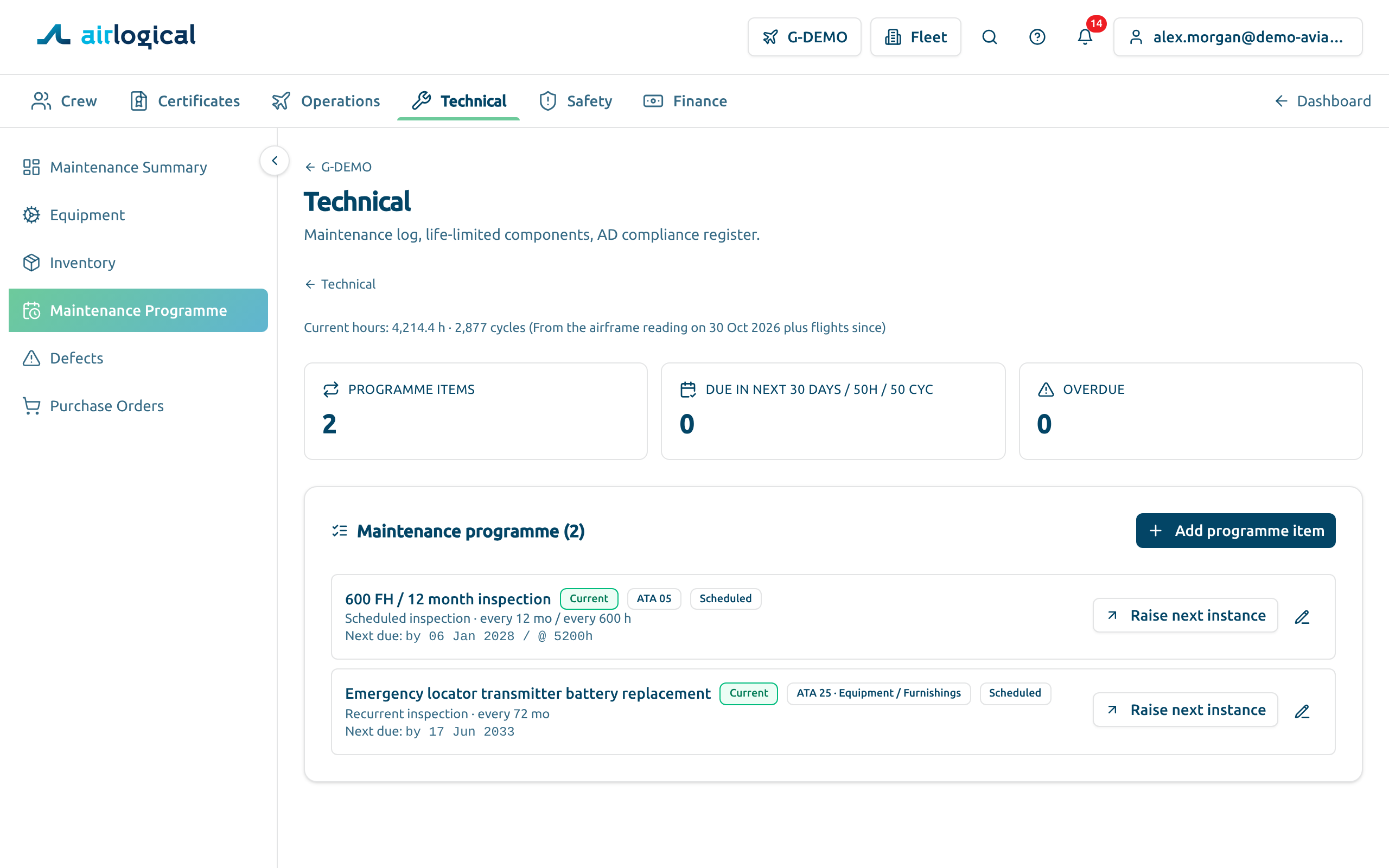
Where to find it
Open the aircraft, choose Technical, then Maintenance Programme. A line at the top shows the aircraft's Current hours and where they came from. Below it are three counts: Programme items, Due in next 30 days / 50h / 50 cyc, and Overdue.
How to add a programme item
- Click Add programme item.
- Fill in the event type, title, ATA chapter and category as for any maintenance event.
- Set the first due point in the due fields: the date, hours and/or cycles at which the item is first due.
- Under Recurrence, set one or more of Interval hours, Interval cycles and Interval months. Without an interval the event is saved as an ordinary one-off task and does not appear on this page.
- Click Create event.
Any maintenance event with an interval set appears here, including ones added from the Maintenance Summary page. The item itself also appears in the Maintenance log.
How next due is worked out
- •Before the first completion, the item is next due at the first due point you entered.
- •After a raised task is completed, the months interval is added to its completion date, and the hours and cycles intervals are added to its Hours at completion and Cycles at completion. If those were left blank, the hours and cycles that task was due at are used instead, and the row says "(planned figure used)".
- •The item is due when any of its triggers is reached — whichever comes first.
- •The row shows the interval ("every 12 mo / every 200 h"), the next due values, and the date it was last completed.
- •If the row says to set a Due date, Due at hours or Due at cycles, use the pencil icon to enter one on the item first. Until then the item shows as Current and cannot be raised.
How to raise and complete the next task
- Click Raise next instance on the item. A Planned task is created with the next due values and appears in the Maintenance log.
- If a Planned, In progress or Overdue task raised from the item is still open, no new one is created and the message says "Already raised". Complete or cancel that task first.
- When the work is done, edit that task in the Maintenance log, set it to Completed and enter the completion date. Hours at completion and Cycles at completion are filled in from the aircraft's current hours and cycles when known; change them if the work was done earlier.
- The programme then counts the next interval from that completion.
What the statuses mean
| Status | Meaning |
|---|---|
| Current | No trigger is within the due-soon window |
| Due soon | A trigger is within 30 days, 50 hours or 50 cycles |
| Overdue | A date has passed, or the hours or cycles have been reached |
| Can't tell | Due by hours or cycles, but the aircraft's current hours or cycles are not recorded |
Where the current hours come from
This page, the Maintenance summary and the compliance forecast all use the same current hours and cycles:
- The airframe reading — the airframe hours and cycles entered on Edit aircraft with the date they were read, plus flights landed after that date (see Aircraft hours and the forecast).
- Equipment readings — only when there is no airframe reading with a date and at least one equipment item tracks running hours: the highest running-hours reading among equipment that tracks hours, and the highest cycles reading on the Equipment register (see Equipment and inventory).
- Not recorded — when neither exists. Items due by hours or cycles then show as "Can't tell", never as current or due soon.
If the airframe reading has hours but no cycles (or the other way round), the missing one counts as not recorded.
Who can do this
- •Account owners and account admins can do everything.
- •Other users need Technical access: Read-only to view, Read & write to add items or raise tasks. They also need at least Read-only Aircraft access. With Read-only access Add programme item, Raise next instance and the pencil icon are hidden.
- •Nothing can be added or raised on an archived aircraft.
Tips
- •Use the pencil icon on a row to edit the item itself (its intervals or first due point).
- •Raised tasks count under Open tasks on the Maintenance summary; the programme items themselves count under Maintenance programme.