Safety Documents & Notices holds two things: controlled manuals, kept as numbered revisions, and safety notices sent to crew. For both, Airlogical records who has read and acknowledged them.
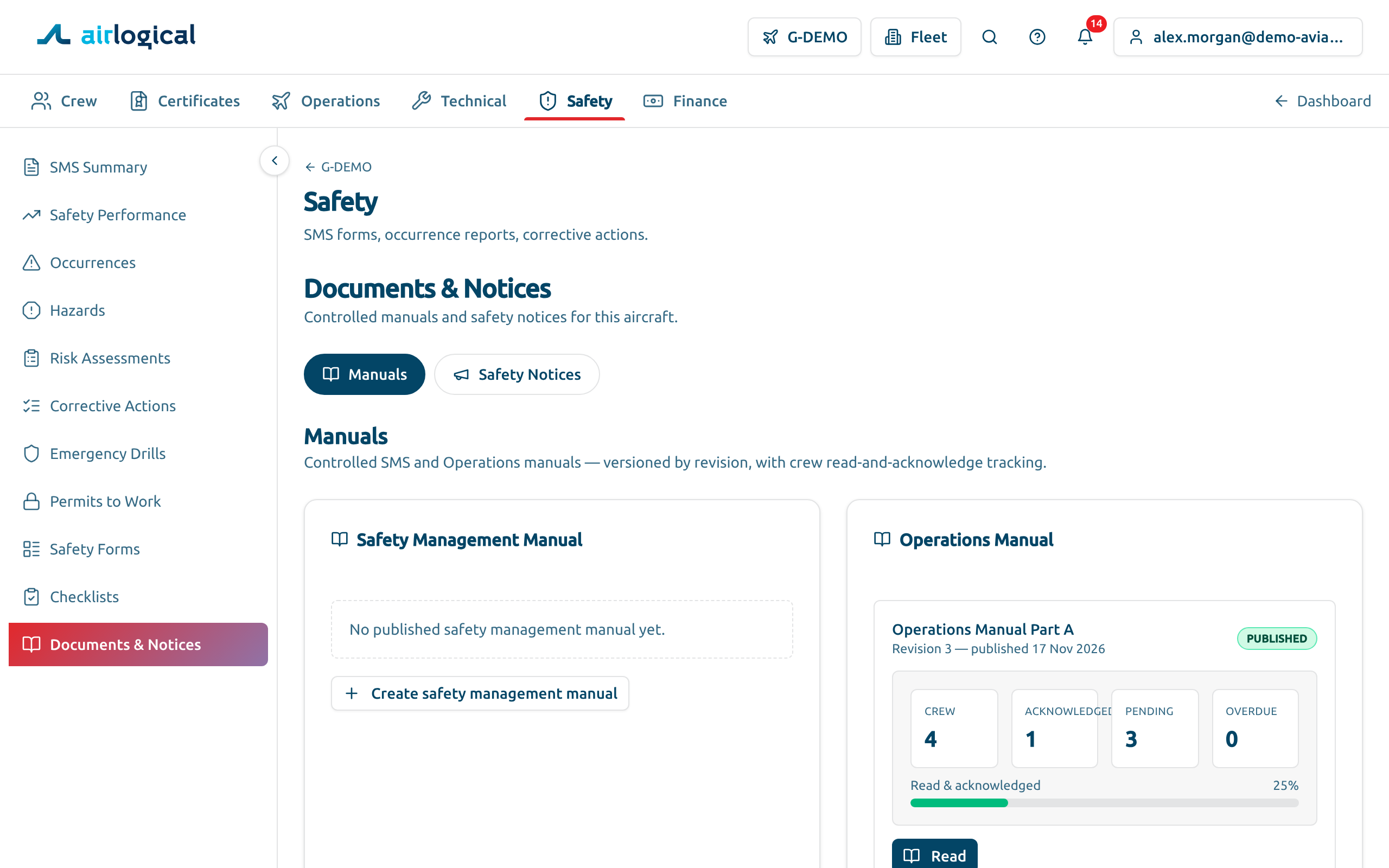
Where to find it
Open the aircraft, choose Safety, then Safety Documents & Notices in the left sidebar. It has two tabs: Manuals and Safety Notices. A number on a tab shows how many items are waiting for your own acknowledgement.
How to create and publish a manual
There are two manuals: the Safety Management Manual and the Operations Manual.
- On the Manuals tab, select Create safety management manual or Create operations manual. These buttons only appear while that manual has no published revision and no draft.
- Enter a Title and optional Revision notes.
- Turn on Require crew acknowledgement if crew must confirm they have read it. When it is published, every active crew member on the account is asked to acknowledge it.
- Select Create draft. This starts draft revision 1 and opens the editor.
- Use Add section to write the content. Sections can be moved up and down, edited and removed.
- In Settings you can change the title and notes, and, when acknowledgement is required, set an Acknowledgement deadline (optional).
- Select Preview as reader, then Publish revision and confirm with Publish. A revision needs at least one section. Any earlier published revision becomes Superseded.
Published content is locked. To change it, select Create revision and confirm with Create draft revision: the sections are copied from the published revision into a new draft. Archive moves a revision to a read-only state and keeps its acknowledgements.
How to issue a safety notice
- On the Safety Notices tab, select New notice.
- Enter a Title, a Category and a Severity (Informational, Important or Critical).
- Write the Body. Markdown headings and bullets are allowed.
- Under Recipient mode, choose who receives it: All crew on this aircraft, All crew on the account, Crew matching role(s), or Specific crew members.
- Set Valid from, and optionally Valid until and Acknowledge by.
- Select Create draft. The notice is a Draft and can still be edited.
- Select Issue, enter the Issuer role and confirm with Issue. Each recipient gets an acknowledgement to complete. The notice can no longer be edited from this point.
Use Cancel (with a Cancellation reason) to withdraw a notice, and Archive to file away an issued, active or expired one.
How to acknowledge
When you have something to acknowledge, a banner with Acknowledge this revision (on a manual) or an Acknowledge button (on a notice) appears. Read it, select the button, add a note if you want, and confirm with Acknowledge. The acknowledgement is recorded against your crew profile.
Crew can also find everything waiting for them on My flying: when something is waiting, a banner such as "2 documents to acknowledge" appears there and opens Documents to acknowledge. Select Read beside a manual or notice to open it, then acknowledge it on that page. This works without any other access to Safety: you can read and acknowledge a manual or notice that was sent to you, and nothing else in Safety. See My Flying.
The acknowledgement register for a manual or notice can be downloaded from its page with Export CSV.
What the statuses mean
Manuals:
| Status | Meaning |
|---|---|
| Draft | Being written |
| Published | The current revision |
| Superseded | Replaced by a newer published revision |
| Archived | Read-only, kept for the record |
Notices:
| Status | Meaning |
|---|---|
| Draft | Being written. The only status that can be edited |
| Issued | Sent while its Valid from time was still in the future. It moves to Active within the hour after that time arrives |
| Active | In force: its Valid from time has arrived |
| Expired | Its Valid until time has passed |
| Archived | Filed away |
| Cancelled | Withdrawn |
Issued and Active notices are moved to Expired automatically once Valid until passes. Expire overdue on a notice page does the same straight away for every overdue notice on the account. Crew can acknowledge an Issued or Active notice.
Reminders
- •When the acknowledgement deadline on a manual has passed, each crew member who has not acknowledged it gets a notification, repeated at most once a week. Its Open manual link takes them to the manual's acknowledgement page under My flying.
- •Acknowledgement deadlines and expiry dates of Issued and Active notices appear in the compliance forecast, and the account owner and admins are notified.
Who can do this
- •Creating, publishing, issuing, cancelling and archiving need Read & write access to Safety, or being an account owner or admin.
- •To see the Safety Documents & Notices page, a person needs at least Read-only access to Safety on the aircraft.
- •To acknowledge, a person needs a crew profile linked to their login. Crew with No access to Safety, which is what the Crew member permission preset gives, can still read and acknowledge the manuals and notices sent to them from My flying. See Setting crew permissions.