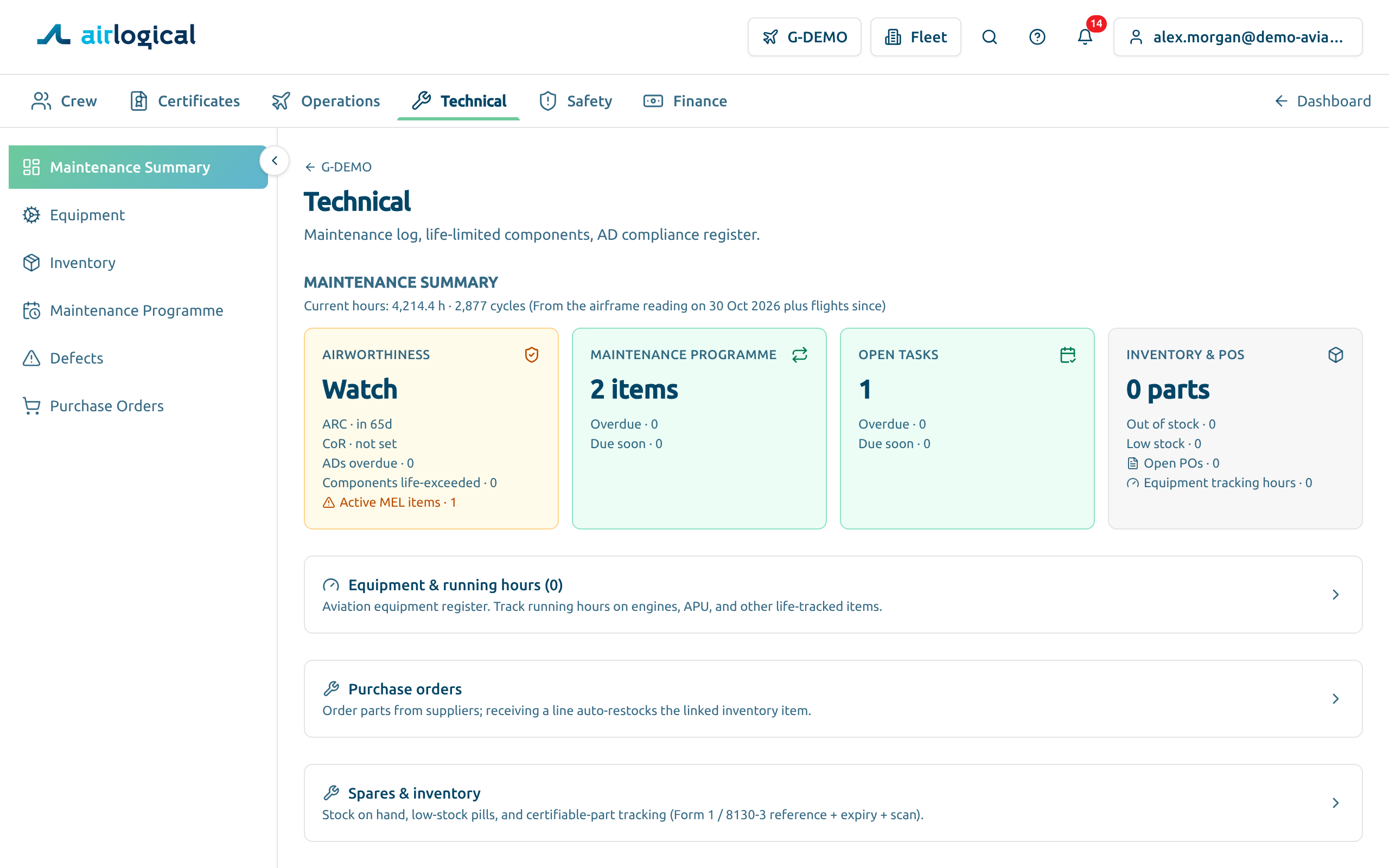
The Technical module holds the engineering side of an aircraft: maintenance tasks, the maintenance programme, Airworthiness Directives, life-limited components, defects, equipment, spares and purchase orders. Its home page is the Maintenance Summary.
Where to find it
Open the aircraft and choose Technical. The menu inside the module has six pages: Maintenance Summary, Equipment, Inventory, Maintenance Programme, Defects and Purchase Orders.
The Maintenance summary cards
| Card | What it shows |
|---|---|
| Airworthiness | Days to ARC and Certificate of Registration (CoR) expiry, ADs overdue, components past their life limit, and active MEL items. Reads Action required, Watch, Current or Not set. Opens the aircraft page, where Edit aircraft sets the ARC and CoR dates |
| Maintenance programme | How many recurring items there are, and how many are overdue, due soon or "Can't tell" |
| Open tasks | Planned, in-progress and overdue maintenance tasks, with overdue, due-soon and "Can't tell" counts |
| Inventory & POs | Parts on record, out-of-stock and low-stock counts, open purchase orders, and how many equipment items track hours. Opens the Inventory page |
Above the cards, Current hours shows the aircraft's hours and cycles and where they came from (see Maintenance programme for the rule).
An ARC or registration certificate shows as expiring when it is within 30 days. A task counts as due soon within 30 days, 50 hours or 50 cycles of any of its due triggers. A task due by hours or cycles when the aircraft's current hours or cycles are not recorded counts as "Can't tell" rather than due soon. An AD counts as overdue when it is Open or In progress and its deadline or next inspection date has passed, or Compliant and its repeat inspection date has passed.
Below the cards are links to Equipment & running hours, Purchase orders, Spares & inventory and Maintenance programme, followed by three registers: the Maintenance log, the Components register and the AD compliance register (see Airworthiness Directives).
How to log a maintenance task
- In Maintenance log, click Add event.
- Choose the Event type (Scheduled inspection, AD compliance, Component overhaul, Defect rectification, Modification or Recurrent inspection) and the Status.
- Enter a Title. Optionally pick an ATA chapter, a maintenance category and the piece of equipment it relates to.
- Set at least one due trigger: Due date, Due at hours or Due at cycles.
- Leave the Recurrence fields empty for a one-off task. Filling them turns the event into a maintenance programme item (see Maintenance programme).
- Click Create event.
How to complete a task
- Click Edit on the task and set the Status to Completed.
- Enter Completed at (UTC). You can add a release-to-service reference and the Certificate of Release to Service (CRS) details: CRS reference, issue date, who released it, their licence number, the maintenance organisation and its approval number.
- Attach the paperwork. A file can only be attached once the event has been saved; before that you can paste a web link.
- Click Save changes.
If you change the Status away from Completed, the completion time is cleared; the CRS details you typed are kept in case you switch back.
Use the archive icon to remove a task that no longer applies. It asks you to confirm, and the task then disappears from the Maintenance log. To bring one back, click Show archived above the log, then Restore on the task. Restore is only offered to users who can change Technical records.
How to record a life-limited component
- In Components register, click Add component.
- Enter the component type (suggestions are offered, and helicopters get rotor and gearbox suggestions), part number and serial number.
- Enter the Installed on date and, if known, aircraft hours and cycles at install.
- Set at least one life limit: hours, cycles or calendar months.
- Enter the component's current hours and cycles, and the status (Installed, Removed, Overhauled or Condemned). Removed and Condemned need a removal date.
- Click Add component. A file can be attached once the component has been saved.
The same part and serial number cannot be recorded as Installed twice on one aircraft. A component counts as past its life limit when its current hours or cycles reach the limit, or the calendar months since installation have run out. Removed and condemned components are hidden; when there are any, click Show retired to see them.
Who can do this
- •Account owners and account admins can view and change everything.
- •Other users need Technical access: Read-only to view, Read & write to add or change records. They also need at least Read-only Aircraft access, or the Technical pages do not open. See Crew permissions.
- •With Read-only Technical access the page is view-only: the add, edit, archive and Restore buttons are hidden. The same applies on Equipment, Inventory, Maintenance Programme and Purchase Orders.
- •When an aircraft is archived the Technical module is read-only until it is restored.
Tips
- •Attach the actual paperwork to each record, so the history sits with the task.
- •The ARC and registration dates on the Airworthiness card come from Edit aircraft, not from the Certificates page; clicking the card opens the aircraft page where that button is (see ARC and airworthiness).