Airlogical tells you when something needs attention: a certificate, qualification, crew passport or visa running out, maintenance due, a safety deadline, a statement issued. Notifications appear under the bell in the header and can also be emailed to you.
Where to find it
- •The bell in the header shows up to eight of your messages, each with a cross to dismiss it, and up to eight compliance items that are overdue or due in the next 90 days. The number on the bell counts your unread messages plus those compliance items.
- •View all notifications at the bottom of the bell, or Notifications in your user menu, opens the full page.
- •Manage notification preferences at the bottom of the bell, or Preferences on the notifications page, opens your settings.
How to work through your notifications
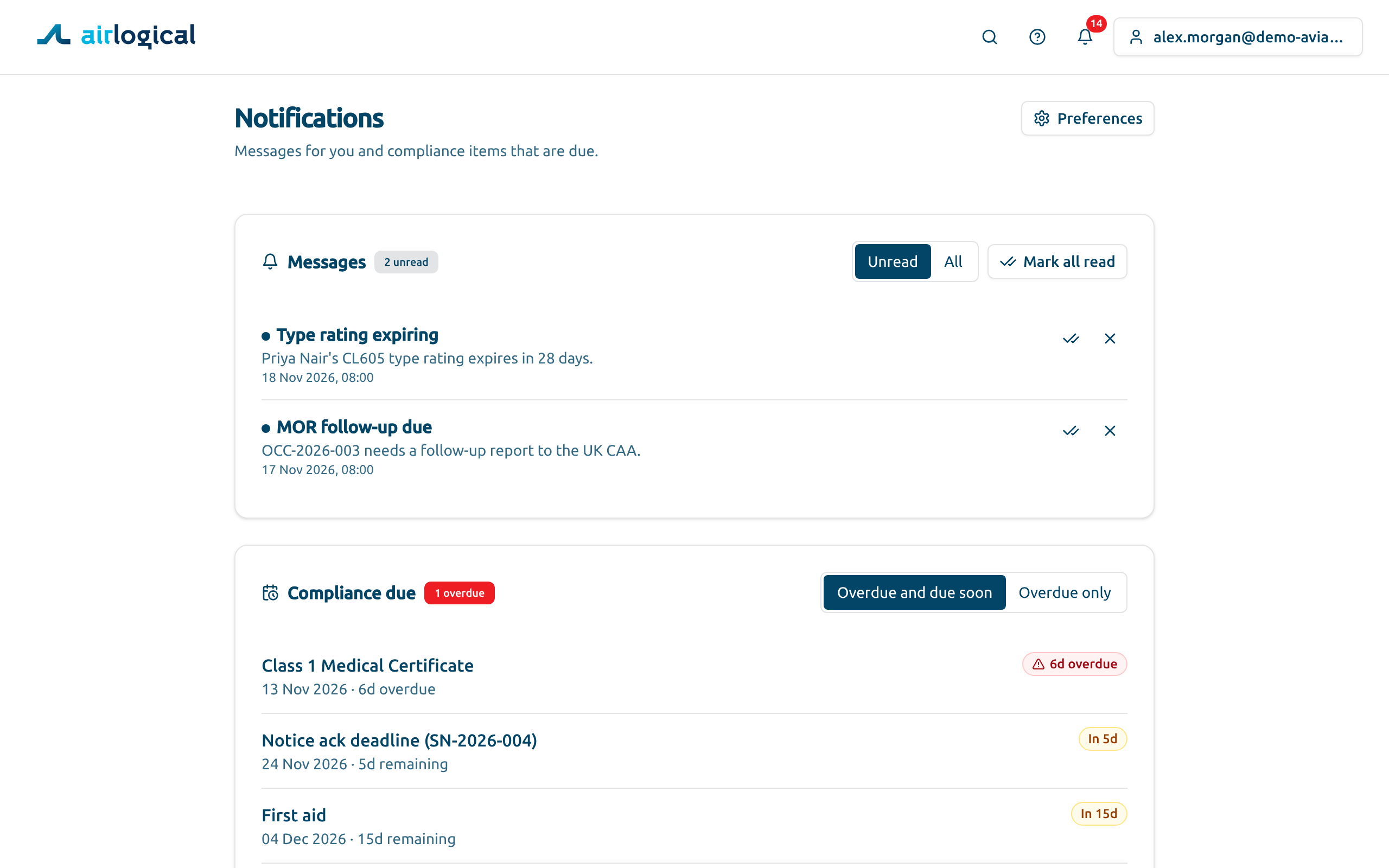
The notifications page has two parts.
Messages
- Choose Unread or All.
- Open a message's link to go straight to the item it is about. Opening it also marks it as read.
- Mark a message as read, or dismiss it, with the buttons beside it. Mark all read clears the unread count in one go.
The page shows your 200 most recent messages and up to 200 unread ones. Dismiss or mark older ones read to see further back.
Compliance due
This lists items across your aircraft that are overdue or due within the next 90 days. Choose Overdue and due soon or Overdue only. For the full picture, see the compliance forecast.
How to choose what reaches you
- Open Notification preferences.
- Notification kinds are grouped by module. For each one, use the In-app and Email switches.
- If email is on, choose how often: Immediately, Daily digest, Weekly digest or Off. Choosing Off turns the email switch off.
Changes save as you make them. Your preferences are personal and apply to every aircraft you can see.
Who receives what
- •Reminders about compliance items that are due or overdue, including safety deadlines such as MOR submissions, corrective actions, hazard and risk-assessment reviews, notice deadlines and expiring notices, go to the account owner and the account admins of the account that manages the aircraft.
- •Safety performance warnings and breaches go to the account owner and admins.
- •"Owner statement issued" and "Invoice awaiting approval" go to the account owner and admins of the account that manages the aircraft.
- •A reminder to acknowledge a manual goes to the crew member who has not yet acknowledged it. Its Open manual link opens the manual on their acknowledgement page under My flying, so it works even for crew with no other access to Safety (see My Flying).
- •Reminders and messages about an archived aircraft are not sent to the owner and admins.
Tips
- •Reminders for a due item come at 90, 30, 7 and 1 day before it is due, and again once it is overdue. If you dismiss a reminder, you will not get that same reminder again; the next stage still arrives, and a renewed item starts again from its new due date.
- •Daily and weekly digests collect the emails into one message instead of one email per notification.