Airlogical is an aircraft management platform for private aircraft owners and aircraft management companies. Everything is organised around the aircraft: its crew, documents, flying, maintenance, safety and costs.
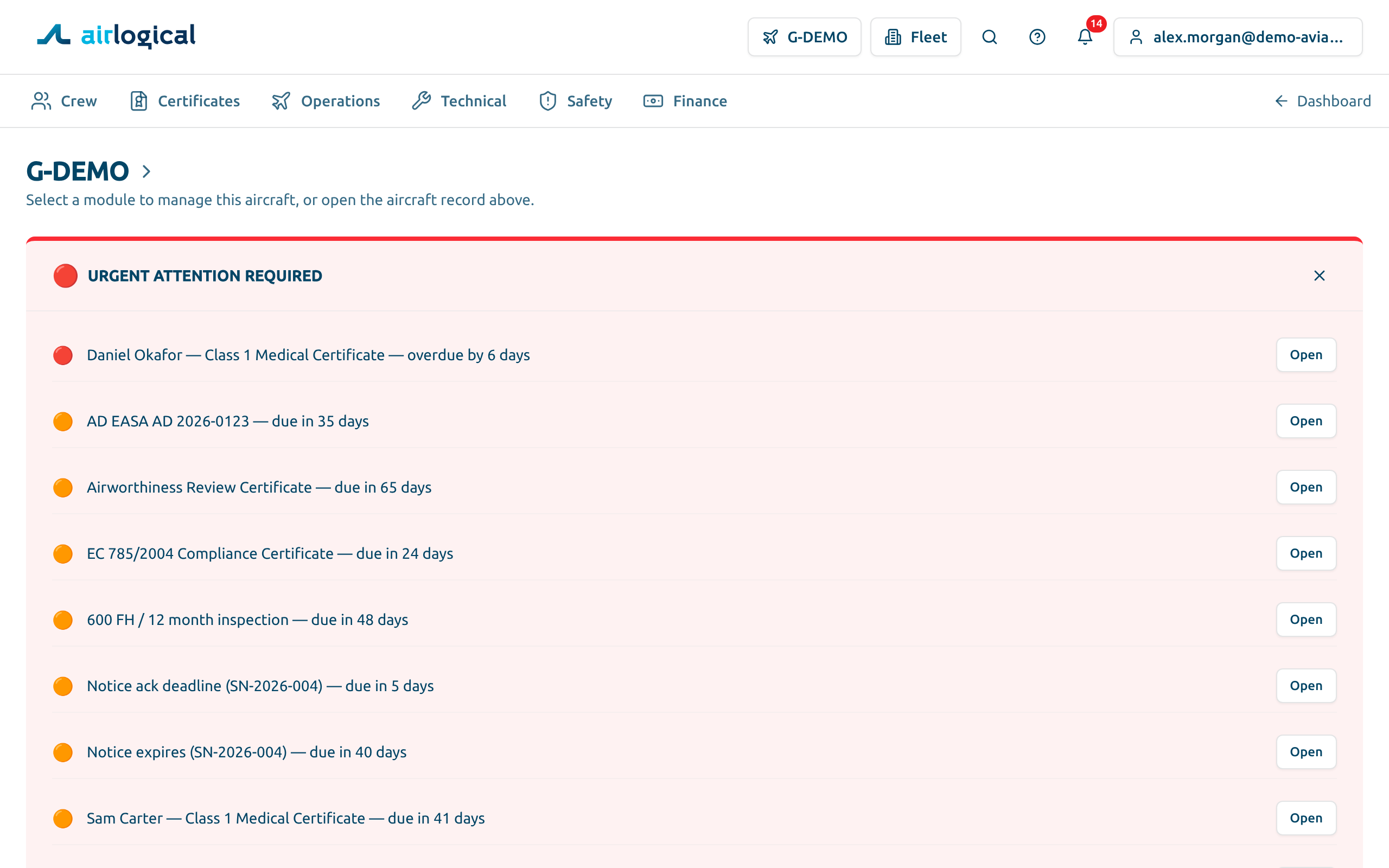
The aircraft dashboard
When you open an aircraft you see a card for each part of the app you have access to:
| Card | What it holds |
|---|---|
| Aircraft | The aircraft record itself: registration, type, airframe details, regulatory dates and insurance |
| Crew | Crew profiles, qualifications, compliance, familiarisation, appraisals and leave |
| Certificates | The aircraft's certificate register, with expiry tracking |
| Operations | Trips and flight legs, the timeline and flight ops plans |
| Technical | Equipment, inventory, the maintenance programme, defects and purchase orders |
| Safety | Safety performance, occurrences, hazards, risk assessments, corrective actions, drills, permits, forms, checklists, and documents and notices |
| Finance | Costs, invoices, owner statements, charter profit and loss, budgets and the accounting export |
Inside each module, the left sidebar lists its pages. For example, Safety opens on the Safety Overview and lists Occurrence Reports, the Hazard Register and the rest beneath it. See Safety overview.
The header
- •Aircraft switcher — jump to another aircraft. Inside an aircraft, it appears when you can see more than one aircraft in that account (archived aircraft are not counted). In the fleet area it shows Select aircraft as soon as there is one
- •Fleet — inside an aircraft, account owners and admins can go back to the fleet dashboard
- •Search — find anything you can see (Ctrl K, or ⌘K on a Mac)
- •Help — these guides
- •Bell — your notifications. See Notifications
- •Your menu — My flying, My profile, Notifications, Help and Sign out
The fleet area
Account owners and admins have a fleet area covering every aircraft in the account. Its sidebar has Dashboard, Aircraft, Compliance, Trips, Schedule, Statements, Reports, Crew and Documents, and under Administration, Users & Access and Account. See Owner portal, Users and access, Account settings and Fleet reports and owner statements.
The Compliance view is the 90-day forward look at everything due across your aircraft and crew. See Compliance forecast.
What you can see
There are three kinds of user on an account:
- •Account owner — full access to everything in the account
- •Account admin — the same as the owner, including editing the account details
- •Crew and other users — access set separately for each part of the app: No access, Read-only, or Read & write
A module you have No access to does not appear on your dashboard. With Read-only you can look, and most screens hide the buttons to add or change things. Where a button still shows, saving is refused. Account owners and admins set these levels. See Setting crew permissions.
Times and dates
Many times, such as occurrence times and safety deadlines, are recorded and shown in UTC. The screen labels them "UTC" where it does.